SMS opt-in screenshots
Live captures from the production app. The actual SMS opt-in lives behind magic-link sign-in at /dashboard/settings; these screenshots make every step of the flow inspectable without an account.
Looking for the styled walkthrough with sample message text and CTIA program details? See How SMS notifications work.
Phone number entry + consent disclosure
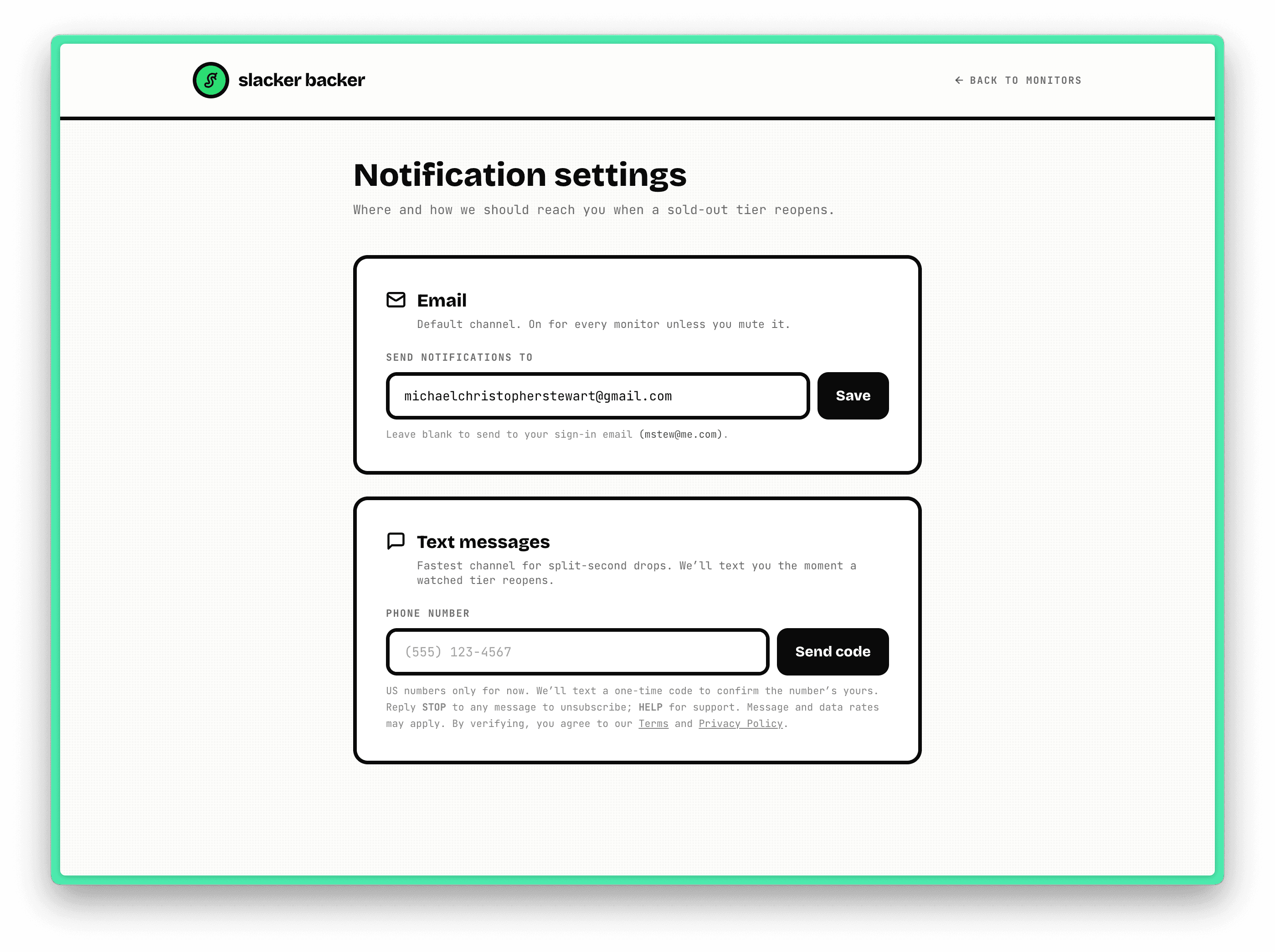
The user enters a US phone number into the Text messages section of /dashboard/settings. The disclosure paragraph below the input is verbatim: “US numbers only for now. We’ll text a one-time code to confirm the number’s yours. Reply STOP to any message to unsubscribe; HELP for support. Message and data rates may apply. By verifying, you agree to our Terms and Privacy Policy.” Both Terms and Privacy Policy are linked inline in the live UI.
/sms/01-phone-entry.png
OTP confirmation step
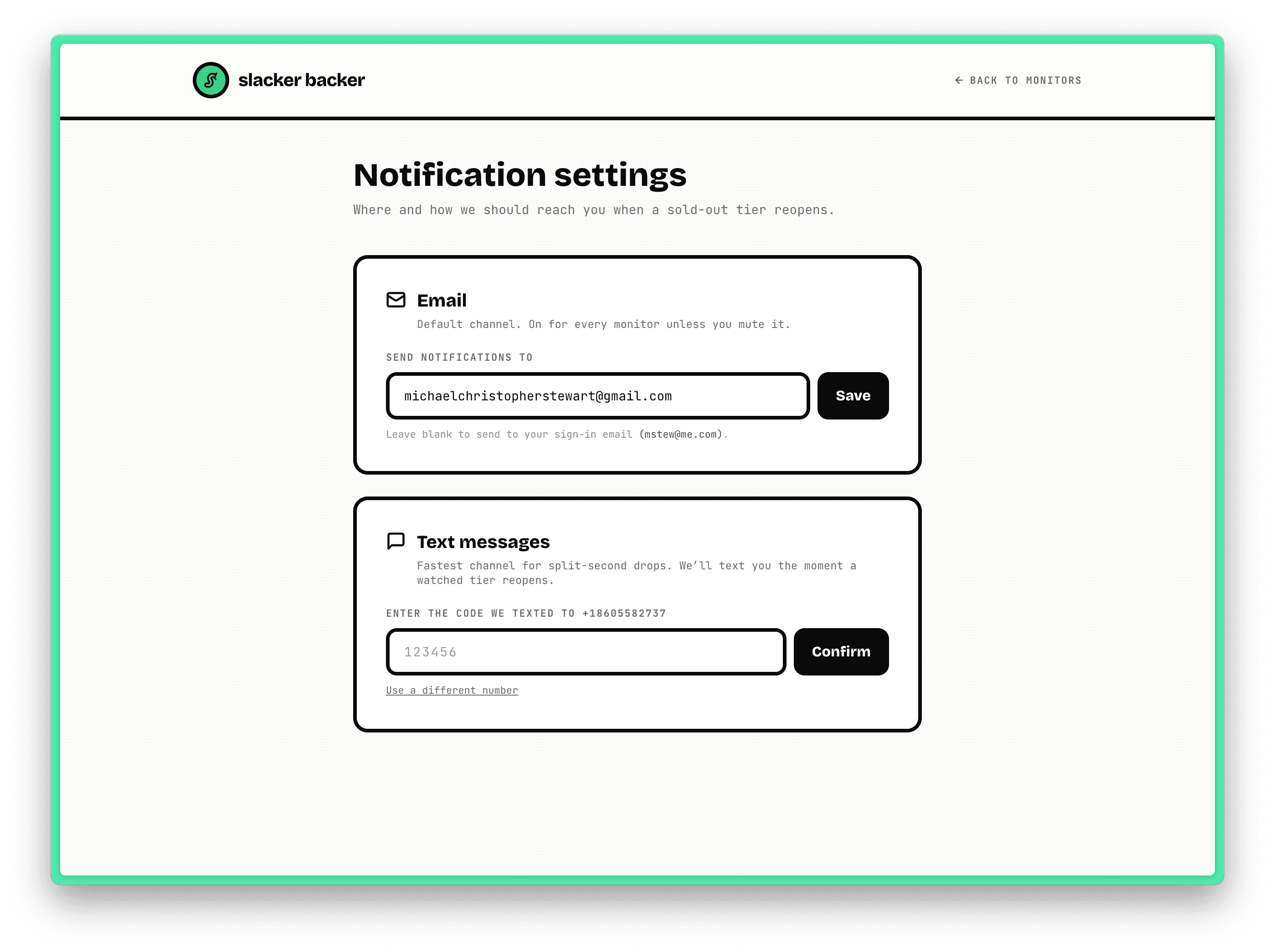
After the user clicks Send code, our backend triggers a Twilio Verify OTP SMS. The page swaps to a 6-digit-code input. Until this step succeeds, the user’s phoneVerifiedAt column stays null and our fan-out path skips them — no notification SMS can be sent until verification completes.
/sms/02-phone-confirm.png
Verified state
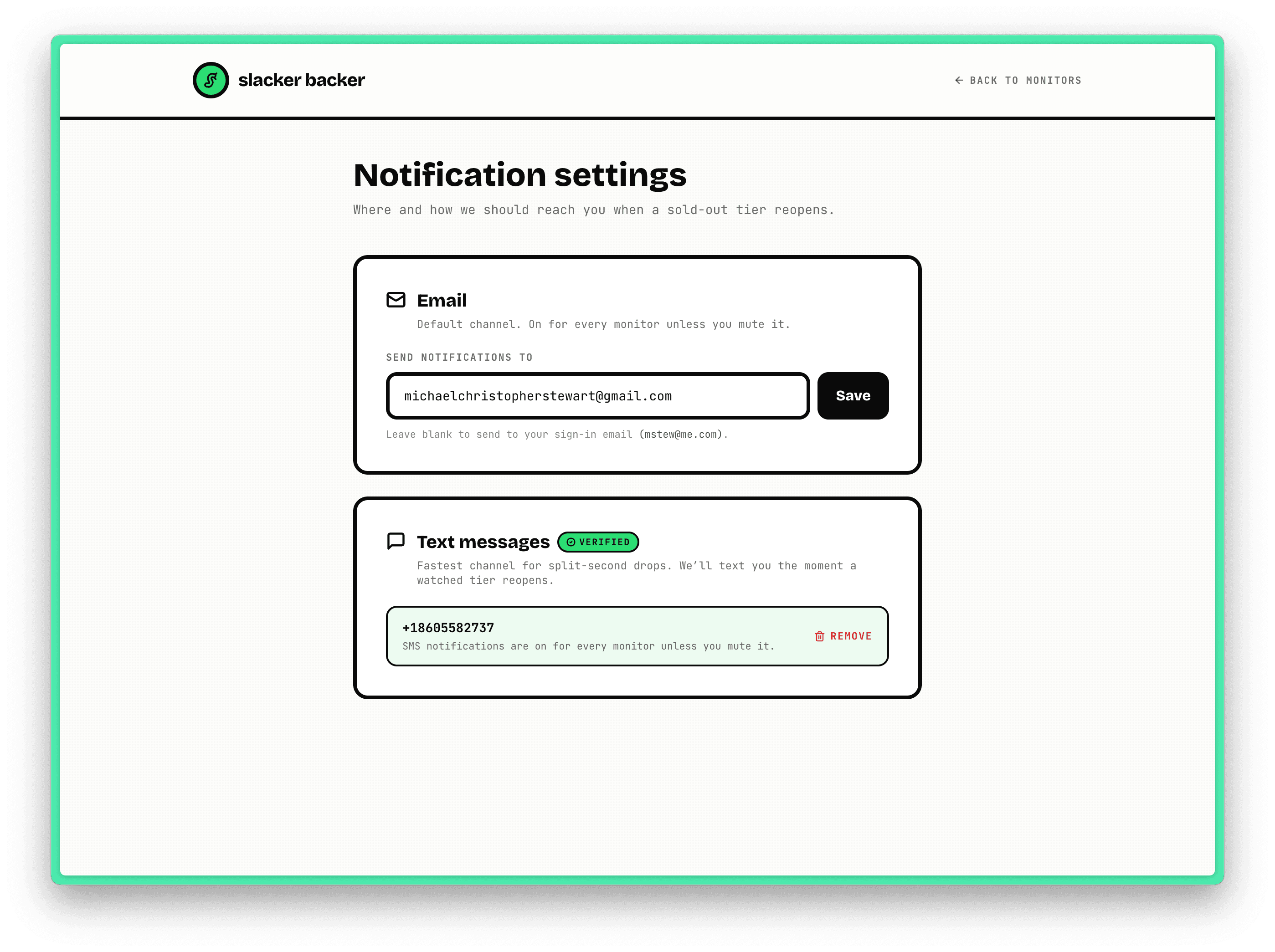
On successful OTP confirmation, the page renders the verified state: a green VERIFIED chip, the saved phone number, a one-line summary of the default per-monitor behavior, and a Remove button that deletes the number from the database in a single click (with a confirm step).
/sms/03-phone-verified.png
Per-monitor SMS toggle
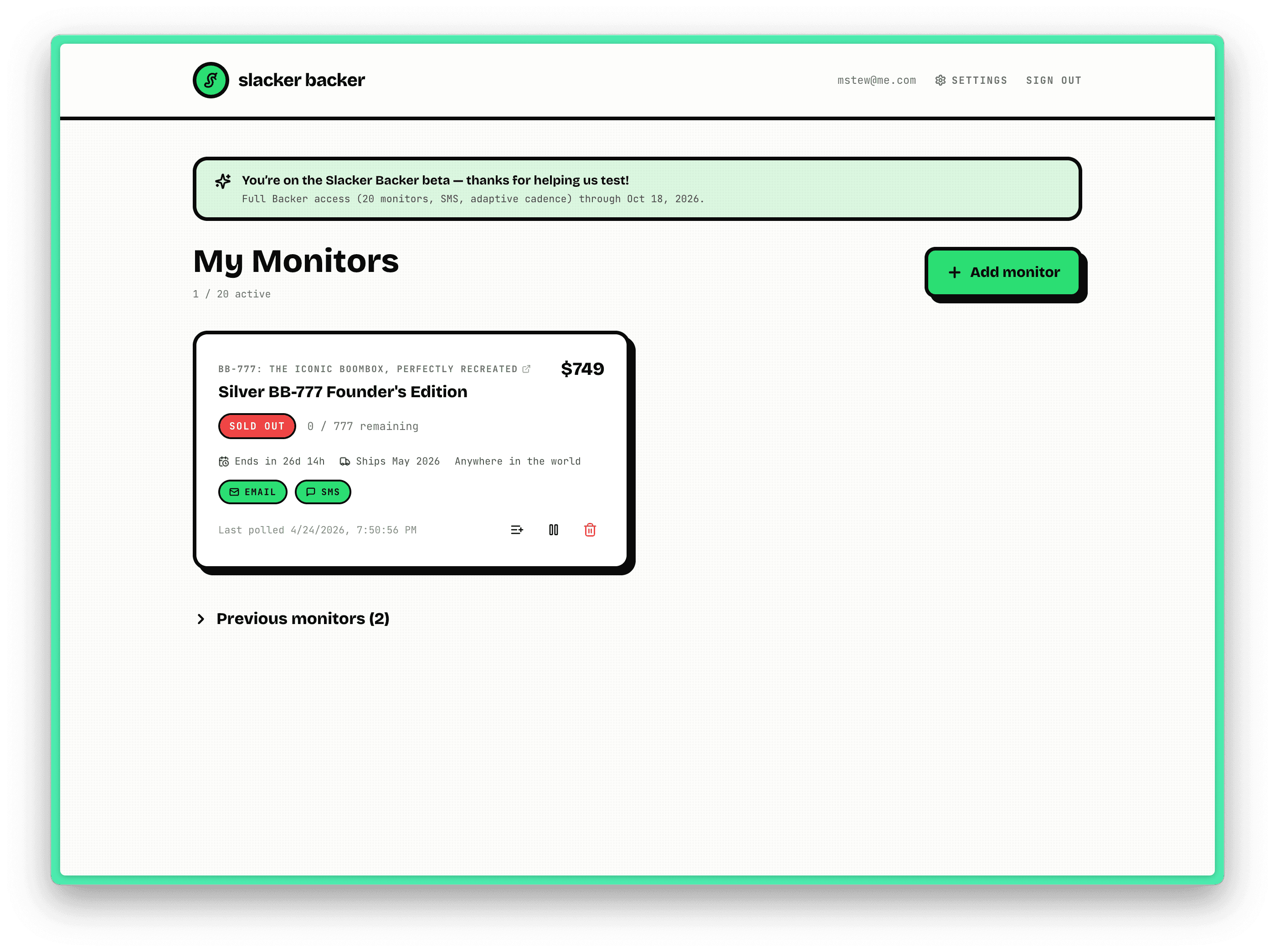
After verification, every reward-tier monitor on the dashboard gets an independent SMS toggle (the green chip next to the EMAIL chip). The user can mute SMS for individual monitors without removing their number, mute everything by replying STOP to any text, or remove the number entirely from Settings.
/sms/04-monitor-toggle.png